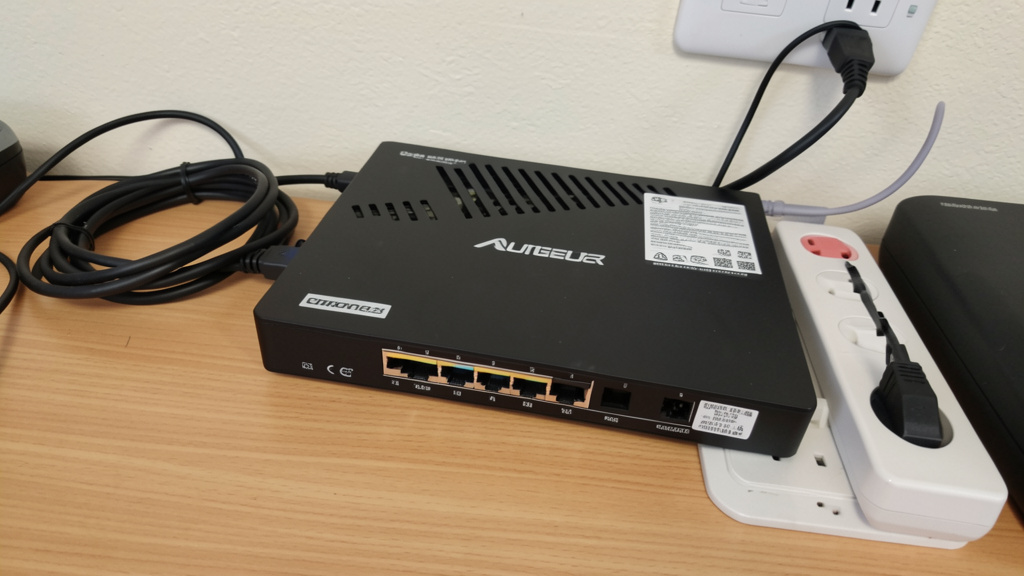
Stop battling dropped calls and dead outlets. Build a resilient, efficient, and adaptable technology foundation that works quietly in the background—so you can focus on your work with confidence.
Your home office technology setup is only as strong as its weakest link: connectivity and power. This guide walks you through every critical consideration—from identifying Wi-Fi dead zones to understanding circuit safety—so you can create a workspace that’s dependable, safe, and ready for evolving demands. We move beyond superficial checklists to deliver a systematic, safety-conscious methodology for engineering a workspace backbone where technology recedes into the background, enabling seamless focus and sustained productivity.
Introduction: The Unseen Foundation of Professional Success
In today’s hybrid work landscape, the home office has evolved from a temporary convenience into a permanent command center for careers, creativity, and client relationships. Yet a persistent gap exists in mainstream advice: while ergonomic chairs and aesthetic decor dominate search results, the silent infrastructure enabling every video call, cloud upload, and deadline met remains critically under-addressed. A dropped connection during an important meeting, corrupted files from an unfiltered power event, or the daily friction of tangled cables—these are not minor annoyances. They represent systemic gaps in foundational planning.
This guide addresses that gap with a structured approach. Grounded in widely recognized electrical safety frameworks (including NEC Article 210 guidelines in North America and IEC 60364 standards internationally) and network engineering principles applicable to residential environments, we present a holistic methodology designed for resilience, safety, and intelligent adaptability. Whether you’re converting a spare room into a workstation or optimizing an existing setup, this resource provides actionable, code-aware strategies to transform frustration into frictionless flow. The goal transcends basic functionality: we engineer environments where technology serves invisibly, empowering your highest-value work without demanding constant attention.
The Resilient Backbone Framework: Engineering Reliability in Three Layers
Before selecting a single cable or outlet, adopt a strategic mindset. The Resilient Backbone Framework structures setup into three sequential, interdependent layers. Skipping any layer risks embedding vulnerabilities that manifest as daily friction. This methodology eliminates guesswork by addressing root causes—not symptoms—and reflects documented patterns in residential workspace challenges.
- Layer 1: Assessment & Planning – Diagnose your space’s unique constraints and map precise technological demands. This diagnostic phase transforms assumptions into informed decisions.
- Layer 2: Implementation & Installation – Execute physical setup with precision, prioritizing safety protocols, intelligent cable pathways, and optimal device placement.
- Layer 3: Optimization & Future-Proofing – Fine-tune performance, establish proactive maintenance routines, and embed flexibility for evolving workflows.
Progressing deliberately through each layer builds confidence, prevents unnecessary rework, and creates a foundation that adapts as your needs grow. We begin where all enduring systems start: with clear-eyed assessment.
Layer 1: Assessment & Planning – The Blueprint for Precision
Step 1: Conduct a Comprehensive Connectivity Audit
Your network needs are shaped by your specific work. Begin with a detailed inventory of every device requiring network access. For each item, document:
- Device Type: Desktop workstation, laptop, VoIP phone, network printer, secondary monitor with Ethernet port, smart speaker, IoT devices (smart lights, thermostat).
- Connection Preference: Does it perform best wired (Ethernet) or wireless (Wi-Fi)? Critical insight: Stationary high-bandwidth devices (desktops, NAS drives, monitors used for high-resolution content) typically gain significant stability and reduced latency from wired connections. Mobile devices (laptops, tablets) inherently require wireless flexibility.
- Bandwidth Profile: Categorize usage: High (video conferencing with screen sharing, large file transfers, live streaming), Medium (web browsing with multiple tabs, standard-definition video calls), Low (email, document editing, background sync).
- Mobility Requirement: Will the device remain fixed at the desk, or move within the office space?
Why this step matters: Without this audit, resources may be misallocated. You might invest heavily in a mesh Wi-Fi system while overlooking a single Ethernet connection that would eliminate lag for your primary workstation. Conversely, you might run unnecessary cables to devices that function reliably on modern Wi-Fi networks. This audit creates a precise demand map, guiding every subsequent infrastructure decision with evidence, not assumption.
Common Pitfall to Avoid: The “More Wi-Fi is Always Better” assumption. In dense urban or multi-unit dwellings, adding excessive Wi-Fi nodes can increase channel congestion and interference. Strategic wired connections for anchor devices often yield greater network-wide performance gains than adding another wireless access point. Quality of connection frequently trumps quantity of signals.
Illustrative Scenario: Consider a financial analyst whose audit revealed their high-spec desktop (stationary, high-bandwidth for real-time data) was connected via Wi-Fi, while a rarely used smart speaker occupied a prime Ethernet port. By swapping connections—running one Cat 6 cable to the desktop and moving the speaker to Wi-Fi—their platform responsiveness improved noticeably, and video calls gained consistent stability. The solution required minimal hardware but maximal insight from the audit.
Step 2: Map Your Physical Space for Signal Propagation and Power Access
Translate your device inventory onto a spatial blueprint. Sketch a simple floor plan of your office (digital or hand-drawn). Mark the following with precision:
- Existing Electrical Outlets: Note locations, test functionality, and identify any controlled by wall switches (common in bedroom conversions). Document outlet type (standard NEMA 5-15 in North America, Type F Schuko in EU regions).
- Structural Obstructions: Identify load-bearing walls (often containing metal studs or concrete), large metal furniture (filing cabinets, bookshelves), appliances on adjacent walls (refrigerators, HVAC units), water sources (aquariums, plumbing stacks). Dense materials like concrete can substantially weaken Wi-Fi signals, sometimes reducing strength significantly per wall.
- Ideal Workstation Zone: Precisely define where your primary desk will reside. This is your “signal zero” and “power zero” point—the epicenter of all infrastructure planning.
- Router/Modem Location: Mark the current or planned location of your network gateway.
Executing a Practical Wi-Fi Signal Test:
1. Download a free spectrum analyzer app (WiFi Analyzer for Android, NetSpot for macOS/Windows).
2. Stand at your intended desk location. Note the signal strength reading in dBm (decibels relative to one milliwatt).
3. Interpret the reading:
* -30 dBm to -50 dBm: Excellent signal (ideal for high-bandwidth tasks)
* -50 dBm to -67 dBm: Good signal (sufficient for HD video calls, general work)
* -67 dBm to -70 dBm: Marginal signal (prone to instability during demanding tasks)
* Below -70 dBm: Poor signal (unreliable for video conferencing)
4. Check channel congestion: The app will display neighboring networks and their channels. High congestion on your router’s channel can cause interference and slowdowns.
Why spatial mapping is transformative: You cannot optimize what you do not measure. This process prevents the common error of placing the router inside a media cabinet “for aesthetics,” only to discover your desk resides in a signal dead zone. It also reveals critical power deficits before furniture arrives—saving hours of frustration and potential safety concerns from overloaded extension cords.
Advanced Power Mapping Technique: Count every device requiring power at your workstation. Then add three. This “future-proof buffer” accounts for inevitable additions: a second monitor, a document camera, a smart desk lamp, or a phone charging station. If your desk zone has two outlets but requires power for computer, dual monitors, lamp, speaker, phone charger, and printer, you face an immediate deficit. This quantifiable gap justifies strategic solutions—surface-mount raceways, under-desk power modules, or professional outlet installation—rather than risky daisy-chaining of power strips.
Step 3: Calculate Power Load and Validate Circuit Safety
This step is fundamentally about safety. Overloaded circuits pose serious risks. Approach this calculation with care.
Step-by-Step Load Calculation:
1. List Every Device: Include computer tower, monitors, desk lamp, printer, speakers, phone charger, external drives, humidifier, space heater (if used seasonally).
2. Find Power Ratings: Check device labels or power adapters for wattage (W) or amperage (A). If only amps are listed: Watts = Amps × Voltage (120V in North America/Japan; 230V in Europe/UK/Australia).
3. Sum Simultaneous Load: Add wattage for all devices likely running concurrently during peak work hours. Example:
* Desktop Computer: ~350W
* Dual Monitors (LED): ~60W total
* LED Desk Lamp: ~12W
* Laptop Charger (secondary): ~65W
* Laser Printer (active): ~500W (note: intermittent but high peak)
* External SSDs (2x): ~20W
* Total Continuous Load Estimate: Approximately 1,000W (excluding printer peak)
4. Apply the 80% Safety Guideline (Per NEC & International Standards):
* Standard 15A Circuit (1,800W max): Safe continuous load ≈ 1,440W
* Standard 20A Circuit (2,400W max): Safe continuous load ≈ 1,920W
* Your calculated load should remain below these thresholds.
5. Account for Shared Circuits: Determine if your office outlets share a circuit with other rooms (bedroom lights, living room TV). Test by turning off the suspected circuit breaker—does power vanish in adjacent areas? If shared, include estimated loads from those zones in your calculation.
Why this calculation matters: Safety protocols exist for documented reasons. Exceeding circuit capacity generates heat in wiring, which over time can degrade insulation. This alignment with globally recognized electrical safety frameworks is designed to protect lives and property.
Illustrative Scenario: A homeowner added a high-wattage space heater to an office setup on a shared bedroom circuit. During colder months, the circuit breaker tripped repeatedly. Unaware of the overload risk, they made an unsafe modification to the electrical system. Subsequent inspection revealed heat damage requiring professional repair. A pre-setup load calculation would have flagged the heater as incompatible with the circuit, prompting a safer solution (dedicated circuit or alternative heating) and preventing hazardous conditions.
Clear Guidance on Professional Consultation: If your calculated load approaches or exceeds safe thresholds, if outlets are insufficiently located, or if your home features older wiring (knob-and-tube, aluminum), consult a licensed electrician. They can assess panel capacity, install a dedicated circuit for your office (highly recommended for critical workspaces), and ensure all work complies with local codes. This investment safeguards your safety, your equipment, and your home’s insurability. When circuit integrity is uncertain, professional assessment is essential.
The Fundamental Principle: A resilient home office is engineered, not assembled. The deliberate time invested in assessment—mapping signals, calculating loads, diagnosing constraints—pays exponential dividends in daily reliability, long-term safety, and freedom from preventable disruptions.
Layer 2: Implementation & Installation – Building with Precision and Safety
Step 4: Executing Your Connectivity Strategy – Wired Intelligence and Wireless Wisdom
With your audit complete, implement the optimal blend of wired and wireless connections. This is not an either/or choice but a strategic allocation based on device needs.
The Value of Wired Ethernet for Anchor Devices:
For stationary equipment demanding consistent throughput, minimal latency, and high reliability—primary workstations, network-attached storage (NAS), presentation displays—Ethernet is generally the preferred choice. Key advantages:
* Performance Consistency: Gigabit Ethernet delivers full bandwidth unaffected by physical obstructions, neighboring networks, or household appliance interference. Latency remains consistently low.
* Enhanced Security: Physical connections cannot be remotely intercepted like wireless signals, adding a layer of security for sensitive work data.
* Network-Wide Optimization: Offloading high-bandwidth devices to Ethernet frees Wi-Fi spectrum for mobile devices, reducing congestion and improving overall wireless performance.
Practical Methods for Running Ethernet Cables:
* Surface-Mount Raceways (Ideal for Renters/DIY): Adhesive-backed plastic channels conceal cables along baseboards, door frames, or walls. Select low-profile, paintable options for aesthetics. Route cables from the router location to your desk zone. Use corner adapters for clean turns. Pro Tip: Run cables along the top of baseboards rather than the floor to avoid foot traffic wear.
* In-Wall Installation (Permanent, Clean Aesthetic): Requires drilling access holes and “fishing” cable through wall cavities. Critical Safety Protocol: Always use a stud finder with AC wire detection before drilling. Verify no electrical lines, plumbing, or structural elements occupy the path. Use only CMR (Communications Riser) or CMP (Plenum) rated cable for in-wall installation per fire safety codes—never use standard patch cables. If drilling causes uncertainty, stop and consult a professional. Safety supersedes aesthetics.
* Under-Carpet Solutions: Specialized flat Ethernet cables can be routed under carpet edges using adhesive tape designed for low-pile carpets. Ensure the cable lies flat to prevent tripping hazards and verify it’s rated for this specific use case. Avoid high-traffic pathways.
Wireless Optimization: Maximizing Wi-Fi Performance
* Strategic Router Placement: Position your router (or primary mesh node) centrally relative to high-use areas. Elevate it on a shelf (not the floor), maintain clearance from metal objects, large appliances, cordless phone bases, and microwaves. Avoid enclosing it in cabinets or behind TVs. In multi-story homes, placement on an upper level often improves vertical coverage.
* Dual-Band/Tri-Band Intelligence: Modern routers broadcast separate networks:
* 2.4 GHz Band: Longer range, better wall penetration, but slower speeds and crowded spectrum (used by Bluetooth, baby monitors). Best for IoT devices, printers, or areas distant from the router.
* 5 GHz Band: Faster speeds, less congestion, but shorter range and weaker wall penetration. Ideal for your primary workstation, video conferencing devices, and high-bandwidth tasks. Connect office devices here whenever signal strength permits.
* 6 GHz Band (Wi-Fi 6E/7): Newest band offering high bandwidth and minimal congestion. Use for stationary high-performance devices if your router and devices support it.
* Manual Channel Selection: Auto-channel selection may not optimize in dense environments. Use your Wi-Fi analyzer app to identify the least congested channel. Log into your router admin panel and set it manually. Re-check periodically as neighborhood networks change.
Adaptable Implementation Paths:
* Ideal Path (New Construction/Renovation): Run Cat 6a cable to desk location during wall access. Install a wall plate with keystone jacks. Place a small gigabit switch under the desk. Future-proof with conduit for easy upgrades.
* Practical DIY Path (Existing Space): Use surface-mount raceways to run a single Cat 6 cable from router to desk. Connect to an affordable 5-port gigabit switch mounted under the desk via adhesive tray. Provides clean, reliable wired ports for all stationary devices.
* Renter-Friendly Path: Prioritize optimizing existing Wi-Fi (placement, channel selection). Use flat Ethernet cables secured with removable adhesive clips along baseboards for a single critical wired connection. Test powerline adapters cautiously (see Friction section) as a last resort.
Step 5: Power Infrastructure – Safety, Organization, and Intelligent Distribution
Outlet Expansion with Uncompromising Safety:
Never daisy-chain power strips (plugging one strip into another). This violates fire codes in most jurisdictions and creates significant hazards. Instead:
* Select a Certified Surge Protector: Not all power strips offer surge protection. Verify:
* UL Listing (US) or CE Marking (EU): Essential safety certification.
* Joule Rating: Minimum 1,000J for basic protection; 2,000J+ recommended for offices with multiple electronics. Higher Joules = more absorption capacity for large surges.
* Clamping Voltage: Lower is better (under 400V ideal). This is the voltage threshold at which the protector activates.
* Indicator Lights: Shows protection components are functional. Replace unit if light extinguishes.
* Warranty: Reputable brands offer connected equipment warranties—review the terms.
* Integrate a UPS (Uninterruptible Power Supply): For critical work, preventing data loss is paramount. A UPS provides:
* Battery Backup: Several minutes of runtime during outages, allowing safe file saving and system shutdown.
* Power Conditioning: Filters voltage fluctuations that can degrade electronics over time.
* Sizing Guidance: Calculate total wattage of protected devices (computer, primary monitor, network gear). Choose a UPS with a VA rating 1.5x your total wattage. Units with USB/software enable automatic shutdown during prolonged outages.
Comprehensive Cable Management System:
Chaos under the desk breeds frustration and hazards. Implement a tiered approach:
1. Foundation Layer (Under-Desk): Mount a ventilated power module tray or basket using screws or heavy-duty adhesive. Houses surge protector/UPS, keeping it elevated, accessible, and improving airflow. Prevents cords from dangling on the floor.
2. Vertical Management: Use adhesive-backed cable clips, Velcro One-Wrap straps (reusable, no residue), or spiral wrap tubing to bundle cords along desk legs or wall surfaces. Group by function (power, data, audio).
3. Horizontal Management: Install a cable raceway across the rear underside of the desk. Feed all device cords through grommet holes into the raceway, creating a clean front profile. Use cable sleeves within the raceway for further organization.
4. Identification Protocol: Label every cord at both ends using a label maker or durable tags. “Monitor 1,” “Printer USB,” “Desk Lamp.” This reduces troubleshooting time significantly during rearrangements or repairs.
Advanced Power Solution: Dedicated Circuit Installation
For ultimate reliability—especially with high-wattage workstations, servers, or frequent circuit interruptions—a dedicated 20-amp circuit is a professional standard. This involves:
* Running new 12-gauge NM-B cable from the main electrical panel directly to a new duplex outlet location behind your desk.
* Installing a dedicated 20-amp breaker in the panel.
* Critical Requirement: This work must be performed by a licensed electrician. They will verify panel capacity, ensure correct wire gauge and breaker type, install proper junction boxes, and obtain necessary permits. While investment varies depending on home layout, benefits are profound: isolated power unaffected by appliances elsewhere, elimination of nuisance tripping, enhanced safety, and increased property value. For professionals whose livelihood depends on workspace uptime, this is often a high-impact infrastructure upgrade.
Step 6: Integrating Smart Power and Connectivity Tools
Leverage technology to automate resilience and efficiency:
* Smart Plugs/Strips: Schedule non-essential devices (printer, speakers, desk lamp) to power off after work hours, reducing standby power consumption. Use to remotely reboot frozen network equipment (router, modem) via smartphone app—resolving many connectivity issues without physical access. Safety Note: Ensure smart plugs are rated for the device’s wattage; avoid using with high-draw appliances like space heaters unless explicitly rated for it.
* Network Monitoring: Utilize router-based tools or apps like PingPlotter to monitor connection stability. Set alerts for packet loss or latency spikes exceeding thresholds, enabling proactive troubleshooting before critical meetings.
* Centralized Power Control: Smart power strips can cut power to peripheral devices (monitors, speakers, chargers) when your computer enters sleep mode, while maintaining power to essential network gear. This automates energy savings without manual intervention.
Layer 3: Optimization & Future-Proofing – Sustaining Peak Performance
Step 7: Establishing Proactive Maintenance Routines
Technology benefits from regular attention. Implement these simple, scheduled checks:
* Daily/Weekly: Visually inspect cables for wear near connectors. Ensure surge protector status lights are illuminated.
* Monthly: Power-cycle network equipment (unplug modem and router for 30 seconds, then restart). This clears temporary issues and refreshes connections. Check UPS self-test indicator (if equipped).
* Quarterly: Update router firmware via admin panel—critical for security patches and performance improvements. Re-scan Wi-Fi channels using your analyzer app; adjust if new congestion appears. Verify UPS battery health using built-in test function.
* Annually: Re-run your initial connectivity and power audit. Has your device count or bandwidth demand increased significantly? Re-test Wi-Fi signal strength at your desk. Review circuit load calculation if adding major new equipment.
Documentation Best Practice: Create a simple “As-Built” diagram. Photograph cable connections behind the desk. Note router model, firmware version, SSID names, and channel settings. Record UPS model and replacement date. Store this digitally (cloud folder) and physically (printed, taped inside desk). This documentation is invaluable during troubleshooting, moves, or when consulting professionals.
Step 8: Embedding Scalability – Designing for Tomorrow’s Needs
Build flexibility into your physical infrastructure:
* Cable Slack Protocol: When running any permanent cable (Ethernet, power conduit), leave 12-18 inches of coiled slack at both termination points. Secure slack neatly with Velcro. This accommodates future desk rearrangements, equipment changes, or connector replacements without re-running cables.
* Conduit for Future Upgrades: During any wall modification or new construction, install empty flexible conduit between your desk location and the network closet/router area. This allows effortless future cable upgrades without opening walls again—a minimal upfront effort yielding long-term adaptability.
* Modular Furniture Integration: Select desks with built-in cable management ports, grommet holes, or under-desk trays. These features simplify reorganization and keep cables contained as your setup evolves. Consider desks with integrated power modules (USB ports, AC outlets) for cleaner peripheral charging.
Step 9: Systematic Troubleshooting Framework – Diagnose with Confidence
When issues arise, avoid random guessing. Follow this logical isolation flow:
Scenario: “No Internet Access”
1. Isolate Scope: Check multiple devices. Is the issue isolated to one device or affecting all?
2. Hardware Reset: Power-cycle modem and router (unplug 30 seconds). Wait 2 minutes after restoring power.
3. ISP Verification: Check ISP status page or app for area outages. Confirm with a neighbor if possible.
4. Device-Specific Check (if isolated): Restart device. Forget and rejoin Wi-Fi network. Try a different Ethernet cable/port. Check device network settings.
Scenario: “Slow or Unstable Wi-Fi at Desk”
1. Baseline Test: Run speed test on a device connected via Ethernet to the router. If slow, issue is likely ISP or router—not Wi-Fi.
2. Signal Verification: Use Wi-Fi analyzer app at desk location. Is signal strength below -67 dBm? Is channel highly congested?
3. Temporary Relocation Test: Move router closer to desk (temporarily). If speed stabilizes, problem is signal propagation (obstruction, distance).
4. Bandwidth Audit: Check router admin panel for active devices. Is another user streaming or downloading large files? Prioritize traffic using QoS (Quality of Service) settings if available.
Scenario: “Frequent Circuit Breaker Trips in Office”
1. Immediate Action: Unplug all non-essential devices from the circuit. Reset breaker.
2. Load Identification: Plug devices back in one by one. Which device triggers the trip? Pay attention to high-wattage items (laser printers during warm-up, space heaters, older refrigerators on shared circuits).
3. Load Recalculation: Revisit your Layer 1 power load calculation. Has total wattage increased significantly?
4. Professional Assessment: If trips persist after removing suspect devices, or if the breaker feels hot, contact a licensed electrician immediately. This indicates potential wiring faults or overloaded circuit conditions requiring expert diagnosis.
This methodical approach transforms troubleshooting from stressful guesswork into a calm, logical process—saving time and reducing anxiety during critical work moments.
Navigating Common Frictions and Intelligent Alternatives
Real-world constraints demand adaptable solutions. Here’s how to navigate frequent challenges with wisdom and safety.
The Renter’s Reality: Achieving Excellence Without Permanent Modifications
Renters face legitimate restrictions but can still build a highly functional setup:
* Connectivity Strategy: Prioritize optimizing existing Wi-Fi. Relocate the router to a central, elevated position away from obstructions. Upgrade to a modern Wi-Fi 6 mesh system if landlord permits (often considered tenant-installed equipment). For a critical wired connection: use ultra-thin, flat Ethernet cables designed for under-door or baseboard routing. Secure with removable adhesive clips that leave no residue. Powerline Adapter Caution: Performance varies based on home wiring age, circuit layout, and appliance noise. Test rigorously before relying on them for critical work. They often underperform with older wiring or across circuit breakers.
* Power Strategy: Use heavy-duty, surge-protected power strips with flat, right-angle plugs to maximize access to existing outlets. Mount cable management trays using removable adhesive hooks. Avoid tape that damages paint. Propose adding an outlet to the landlord as a safety upgrade—they may approve if framed as reducing fire risk from overloaded strips. Document pre-existing outlet conditions with photos before moving in.
Budget-Conscious Phasing: Building Excellence Incrementally
You need not implement everything simultaneously. Phase investments for maximum impact per dollar:
* Phase 1 (Foundation – <$75): High-quality surge protector (1,000J+), basic cable management kit (Velcro straps, adhesive clips), optimize router placement and Wi-Fi channel. Impact: Immediate safety upgrade and reduced daily friction.
* Phase 2 (High Leverage – <$150): Run one Ethernet cable to primary workstation using surface raceways. Add a 5-port gigabit switch. Upgrade to a UPS sized for computer and monitor. Impact: Eliminates Wi-Fi instability for core work device; helps prevent data loss from outages.
* Phase 3 (Premium Optimization – $200+): Install dedicated circuit (via electrician), upgrade to mesh Wi-Fi system if coverage gaps persist, implement smart power controls. Impact: Enhanced reliability, safety, and automation.
This phased approach ensures progress without financial strain, building momentum with each completed step.
Knowing When to Engage Professionals: Critical Boundaries
Your safety and home integrity are non-negotiable. Engage licensed professionals for:
* Electrical Work: Installing new outlets, adding circuits, panel modifications, or any work inside the electrical panel. This includes assessing if your panel can support a dedicated office circuit. Do not attempt DIY electrical work beyond plugging in certified devices. Outdated wiring (aluminum, knob-and-tube) requires specialist evaluation.
* Complex Networking: Running multiple in-wall Ethernet drops, installing structured wiring panels, configuring VLANs for separating work/personal traffic securely, or persistent issues defying basic troubleshooting.
* Structural Modifications: Drilling through load-bearing walls, floors, or ceilings where hidden utilities may exist.
Professional engagement is not a failure of DIY spirit—it is a mark of strategic wisdom. It ensures work complies with safety codes, maintains home insurance validity, and delivers lasting results. Budget for professional services as a core component of your setup plan, not an afterthought.
Critical Safety Reminder: Circuit load calculations, electrical panel assessments, and in-wall cable routing near potential utilities carry inherent risks. When uncertainty exists regarding electrical safety, wiring conditions, or structural elements, consultation with a licensed electrician is essential. Protecting life and property transcends cost or convenience considerations.
Your Questions, Answered
Q: Cat 5e vs. Cat 6 vs. Cat 6a Ethernet cable—which is truly necessary for a home office today?
A: For nearly all current home office applications, Cat 6 cable represents the optimal balance of performance, cost, and future readiness. It reliably supports Gigabit Ethernet over standard distances and offers improved crosstalk resistance over Cat 5e. Cat 6a is engineered for higher speeds over longer distances and provides superior shielding—making it an excellent choice only if you are installing cables inside walls during renovation and wish to future-proof for many years. The price premium is modest during installation. Cat 5e remains functional for Gigabit networks over short distances but offers minimal headroom for future demands; given the negligible cost difference during new installation, Cat 6 is generally recommended as the baseline standard. Avoid “Cat 7” marketing claims for residential use—it offers no practical benefit over properly installed Cat 6a and uses non-standard connectors.
Q: Are mesh Wi-Fi systems inherently superior to a single high-end router for home office coverage?
A: Superiority depends entirely on your spatial layout and existing signal map. If your office desk resides within strong signal range of your current router location (confirmed by analyzer app showing > -65 dBm on 5GHz band), a single modern Wi-Fi 6/6E router is often preferable: it provides simpler management, lower latency (no node-to-node “hop” delay), and avoids potential bandwidth reduction that can occur with some mesh backhaul methods. Mesh systems shine in larger homes, multi-story layouts, or spaces with significant obstructions (concrete walls, metal ducts) where a single router cannot deliver adequate signal to the desk zone. When choosing mesh, prioritize systems using dedicated tri-band radios (one band solely for node communication) or Ethernet backhaul capability—this preserves maximum bandwidth for your devices. Always validate coverage with a signal test after installation.
Q: How do I interpret surge protector specifications beyond the Joule rating? What truly matters for office equipment?
A: Joule rating (energy absorption capacity) is critical but not solitary. Evaluate holistically:
Clamping Voltage (VPR): The voltage level at which suppression activates. Lower is better: ≤ 400V is good; ≤ 330V is excellent. High clamping voltage allows damaging spikes to reach your devices.
Response Time: Measured in nanoseconds (ns). Faster is better (<1ns ideal), though most quality protectors are sufficiently quick.
UL 1449 Certification: Ensures the device meets rigorous safety and performance standards. Look for “UL Listed” specifically for surge protection.
Warranty & Connected Equipment Coverage: Reputable brands offer warranties covering damaged equipment (review exclusions carefully).
Indicator Lights:* Essential to confirm protection components remain functional. MOVs (Metal Oxide Varistors) degrade with each surge event. Replace units after a known major surge (nearby lightning strike) or every 3-5 years regardless of visible damage. For a standard office setup, target 1,500-2,500 Joules with clamping voltage under 400V.
Q: Is it safe or advisable to plug a UPS into a surge protector, or daisy-chain power protection devices?
A: This configuration is strongly discouraged and often prohibited by manufacturer warranties. Plugging a UPS into a surge protector can interfere with the UPS’s voltage regulation circuitry, cause compatibility issues during switchover to battery, and potentially create hazards. Conversely, plugging a surge protector strip into a UPS outlet can overload the UPS’s capacity. The correct, safe hierarchy is: Wall Outlet → UPS → Devices. The UPS itself provides robust surge suppression for all devices plugged into its battery-backed outlets. If additional outlets are needed beyond the UPS’s capacity, use a non-surge power strip plugged directly into the UPS—but meticulously ensure the combined wattage of all devices remains well below the UPS’s rated capacity. When in doubt, consult the UPS manual.
Q: Powerline adapters promise “Ethernet over power lines.” Are they a reliable solution when running cables is impossible?
A: Powerline adapters can function adequately in specific, favorable conditions but carry significant performance caveats. Reliability depends heavily on:
Circuit Topology: Adapters work best when plugged directly into wall outlets on the same electrical circuit. Performance degrades substantially if outlets are on different circuits or across older panel types.
Wiring Age and Quality: Modern copper wiring yields better results. Older wiring or degraded connections reduce speed and stability.
Electrical Noise: Appliances with motors (refrigerators, washing machines, HVAC systems) or dimmer switches introduce noise that disrupts the signal. Avoid plugging adapters near these devices.
Adapter Generation: Choose adapters supporting the latest standards (HomePlug AV2, G.hn) with passthrough outlets. Always purchase a matched kit (same brand/model).
Test rigorously before relying on them for critical work: run speed tests at different times of day. If speeds are inconsistent or latency spikes occur during video calls, abandon them. For mission-critical connectivity, surface-mount Ethernet raceways remain vastly more reliable long-term.
Q: What is the definitive difference between a basic power strip and a true surge protector?
A: Functionally, all surge protectors are power strips, but the reverse is categorically false. A basic power strip is merely an extension of your wall outlet—it provides additional sockets with zero protection against voltage surges. A true surge protector contains internal components (primarily Metal Oxide Varistors or MOVs) that detect excess voltage spikes and safely divert that energy to the ground wire before it reaches your connected devices. Verification is simple: check the product packaging or specifications for a Joule rating (e.g., “1,800 Joules Protection”) and UL 1449 certification. If these are absent, it is merely a power strip. Never connect sensitive electronics like computers, monitors, or network gear to an unprotected power strip.
Q: How can a homeowner reasonably assess if their electrical panel can support adding a dedicated office circuit?
A: This assessment requires professional expertise and should not be attempted through visual inspection alone. A licensed electrician will evaluate:
Panel Capacity: Total amperage rating of the main service panel and available physical space for a new breaker.
Panel Age and Type: Older panels may have known safety considerations and limited availability of replacement parts.
Existing Load Calculation: A formal calculation to determine if the current electrical demand leaves sufficient capacity for a new circuit.
Wiring Path Feasibility: Assessing the most efficient and code-compliant route to run new cable.
Homeowners can prepare by locating their panel, noting its brand/model, and identifying any unused breaker slots—but the definitive assessment, safety evaluation, and installation must be performed by a qualified electrician.
Q: Are there legitimate health or security reasons to disable Wi-Fi routers overnight?
A: Regarding health: Decades of scientific research reviewed by organizations like the World Health Organization (WHO) and International Commission on Non-Ionizing Radiation Protection (ICNIRP) have found no conclusive evidence that radiofrequency (RF) emissions from Wi-Fi routers at typical exposure levels cause adverse health effects. The RF energy emitted by a Wi-Fi router is significantly lower than that from a cell phone and diminishes rapidly with distance. Placing the router several feet from seating areas reduces exposure far more effectively than disabling it. Regarding security: A properly configured Wi-Fi network using WPA3 encryption (or WPA2 with a strong, unique password), with WPS disabled and firmware kept current, presents minimal security risk while idle. Disabling Wi-Fi nightly offers negligible security benefit while causing inconvenience. Focus security efforts on strong passwords, network segmentation for IoT devices if supported, and regular firmware updates—not on disabling essential infrastructure.
Q: What exactly is “phantom load,” and what are the most effective strategies to minimize it in a home office?
A: Phantom load (also called standby power or vampire power) is the electricity consumed by electronic devices when they are switched “off” but remain plugged in. Components like power adapters, internal clocks, and network interfaces continue drawing small amounts of power. While individual devices consume little, the cumulative effect across a home office can lead to meaningful increases in energy consumption. Effective reduction strategies:
Smart Power Strips: Use strips that cut power to “slave” outlets when a primary device (like your computer) is turned off.
Scheduled Smart Plugs: Program plugs controlling non-essential devices to switch off completely during non-work hours.
Manual Discipline: Unplug chargers and low-use devices when not needed. Use a power strip with a physical switch for easy cutoff.
Energy Monitoring: Plug a wattage meter into an outlet to measure exact phantom draw of devices—often revealing surprising culprits.
UPS Configuration:* If using a UPS, ensure non-critical devices are plugged into “surge-only” outlets (not battery-backed) if available.
Q: Is it permissible to run Ethernet cable parallel to electrical cable within the same wall cavity or surface raceway?
A: Running data cables parallel to electrical cables for extended distances is strongly discouraged and often violates electrical codes. The alternating current in electrical wires generates electromagnetic fields that can induce interference in adjacent unshielded data cables, potentially degrading network performance. Best practices mandate:
Separation: Maintain a minimum 6-inch (15 cm) separation between Ethernet and electrical cables when running parallel. Increase separation near high-draw appliances.
Crossing: If cables must cross paths, do so at a 90-degree angle to minimize interference exposure.
Raceway Solutions: If using a surface-mount raceway with multiple channels, ensure power and data cables are placed in separated, isolated compartments—never sharing the same channel.
Shielded Cable (S/FTP): In situations where separation is impossible, consider shielded Ethernet cable with proper grounding—but this requires expertise and is generally less reliable than maintaining physical separation. When uncertainty exists, consult installation guidelines or a network professional.
Q: How does seasonal usage (like space heaters in winter) impact home office power planning?
A: Seasonal appliances significantly affect circuit load calculations. A space heater (often 1,000–1,500W) can push a circuit from safe operation into overload territory, especially on shared bedroom or living area circuits. During colder months, proactively:
1. Identify if your office circuit is shared with heating appliances elsewhere.
2. Temporarily unplug non-essential office devices when using a space heater.
3. Consider alternative heating solutions (e.g., heated footrests under 100W) that impose minimal load.
4. If seasonal heating is essential, consult an electrician about a dedicated circuit before winter begins.
Similarly, in warmer climates, portable fans or small coolers add load. Revisit your power audit seasonally if usage patterns shift dramatically.
Q: What are realistic expectations for Wi-Fi range through different wall types in an average home?
A: Wi-Fi signal penetration varies significantly by material:
Drywall/Wood Studs: Minimal attenuation; signals typically pass through 3–5 walls with moderate strength loss.
Plaster/Lath (older homes): Moderate attenuation due to metal mesh; expect reduced range after 2–3 walls.
Concrete/Brick: High attenuation; signals may struggle beyond one wall.
Metal Framing/Foil-Backed Insulation: Severe attenuation; can create near-total dead zones.
Rather than relying on theoretical ranges, always conduct an on-site signal test at your actual desk location using a free analyzer app. This provides actionable data specific to your environment, avoiding assumptions that lead to poor placement decisions.
Conclusion and Your Path Forward
Creating a reliable home office technology backbone is an investment that pays dividends in daily productivity and peace of mind. It transforms the invisible infrastructure of your work life from a source of friction into a quiet enabler of focus. By embracing the Resilient Backbone Framework—grounded in meticulous assessment, executed with safety-conscious implementation, and sustained through proactive optimization—you cultivate an environment where technology empowers rather than interrupts. This foundation supports not just today’s tasks, but tomorrow’s ambitions, adapting gracefully as your work evolves.
Recap: The Three Enduring Pillars
1. Diagnose with Data: Replace assumptions with evidence through connectivity audits, signal mapping, and precise power load calculations. Clarity precedes effective action.
2. Build with Safety and Intention: Prioritize certified surge protection, respect circuit capacities, and implement cable management that serves both function and safety. Quality infrastructure is non-negotiable.
3. Design for Evolution: Embed scalability through cable slack, conduit pathways, and modular choices. Future-proofing is not about predicting the future, but building flexibility to meet it.
The 24-Hour Rule: Momentum begins with a single, concrete action. Within the next day, complete one of these:
Download a Wi-Fi analyzer app and measure signal strength (in dBm) at your exact desk location.
Unplug all devices under your desk, bundle cords with Velcro straps, and label each one clearly.
* Locate your circuit breaker panel and identify which breaker controls your office outlets.
This small step breaks inertia and initiates tangible progress. Excellence is built incrementally.
The Bigger Perspective: Your home office is more than a physical space—it is a critical node in your professional ecosystem. By dedicating thoughtful attention to its foundational layers, you reclaim hours otherwise lost to troubleshooting, reduce cognitive load from environmental friction, and create conditions where focus deepens and creativity flourishes. This meticulous care for the unseen details reflects a profound respect for your work and your well-being. It is the hallmark of a workspace engineered not just to function, but to elevate.
Explore Our Complete Home Office System:
Designing an Ergonomic Home Office Sanctuary | Mastering Digital Workflow for Remote Teams | Sustainable Home Office: Reducing Energy Use Thoughtfully | Advanced Cable Management: Aesthetic and Functional Solutions | Soundproofing Your Home Office for Focus and Privacy | Lighting Your Workspace: Combating Eye Strain and Boosting Alertness | Building a Dual-Purpose Home Office: Work-Life Harmony in Shared Spaces